Run Ollama with IPEX-LLM on Intel GPU#
ollama/ollama is popular framework designed to build and run language models on a local machine; you can now use the C++ interface of ipex-llm as an accelerated backend for ollama running on Intel GPU (e.g., local PC with iGPU, discrete GPU such as Arc, Flex and Max).
See the demo of running LLaMA2-7B on Intel Arc GPU below.
Quickstart#
1 Install IPEX-LLM for Ollama#
IPEX-LLM’s support for ollama now is avaliable for Linux system and Windows system.
Visit Run llama.cpp with IPEX-LLM on Intel GPU Guide, and follow the instructions in section Prerequisites to setup and section Install IPEX-LLM cpp to install the IPEX-LLM with Ollama binaries.
After the installation, you should have created a conda environment, named llm-cpp for instance, for running ollama commands with IPEX-LLM.
2. Initialize Ollama#
Activate the llm-cpp conda environment and initialize Ollama by executing the commands below. A symbolic link to ollama will appear in your current directory.
conda activate llm-cpp
init-ollama
Please run the following command with administrator privilege in Anaconda Prompt.
conda activate llm-cpp
init-ollama.bat
Now you can use this executable file by standard ollama’s usage.
3 Run Ollama Serve#
You may launch the Ollama service as below:
export OLLAMA_NUM_GPU=999
export no_proxy=localhost,127.0.0.1
export ZES_ENABLE_SYSMAN=1
source /opt/intel/oneapi/setvars.sh

./ollama serve
Please run the following command in Anaconda Prompt.
set OLLAMA_NUM_GPU=999
set no_proxy=localhost,127.0.0.1
set ZES_ENABLE_SYSMAN=1
call "C:\Program Files (x86)\Intel\oneAPI\setvars.bat"

ollama serve
Note
Please set environment variable OLLAMA_NUM_GPU to 999 to make sure all layers of your model are running on Intel GPU, otherwise, some layers may run on CPU.
.. note::
To allow the service to accept connections from all IP addresses, use OLLAMA_HOST=0.0.0.0 ./ollama serve instead of just ./ollama serve.
The console will display messages similar to the following:

<a href="https://llm-assets.readthedocs.io/en/latest/_images/ollama_serve.png" target="_blank">
  <img src="https://llm-assets.readthedocs.io/en/latest/_images/ollama_serve.png" width=100%; />
</a>


### 4 Pull Model
Keep the Ollama service on and open another terminal and run `./ollama pull <model_name>` in Linux (`ollama.exe pull <model_name>` in Windows) to automatically pull a model. e.g. `dolphin-phi:latest`:

<a href="https://llm-assets.readthedocs.io/en/latest/_images/ollama_pull.png" target="_blank">
  <img src="https://llm-assets.readthedocs.io/en/latest/_images/ollama_pull.png" width=100%; />
</a>


### 5 Using Ollama

#### Using Curl

Using `curl` is the easiest way to verify the API service and model. Execute the following commands in a terminal. **Replace the <model_name> with your pulled
model**, e.g. `dolphin-phi`.

```eval_rst
.. tabs::
   .. tab:: Linux

      .. code-block:: bash

         curl http://localhost:11434/api/generate -d '
         {
            "model": "<model_name>",
            "prompt": "Why is the sky blue?",
            "stream": false
         }'

   .. tab:: Windows

      Please run the following command in Anaconda Prompt.

      .. code-block:: bash

         curl http://localhost:11434/api/generate -d "
         {
            \"model\": \"<model_name>\",
            \"prompt\": \"Why is the sky blue?\",
            \"stream\": false
         }"
Using Ollama Run GGUF models#
Ollama supports importing GGUF models in the Modelfile, for example, suppose you have downloaded a mistral-7b-instruct-v0.1.Q4_K_M.gguf from Mistral-7B-Instruct-v0.1-GGUF, then you can create a file named Modelfile:
FROM ./mistral-7b-instruct-v0.1.Q4_K_M.gguf
TEMPLATE [INST] {{ .Prompt }} [/INST]
PARAMETER num_predict 64
Then you can create the model in Ollama by ollama create example -f Modelfile and use ollama run to run the model directly on console.
export no_proxy=localhost,127.0.0.1
./ollama create example -f Modelfile
./ollama run example
Please run the following command in Anaconda Prompt.
set no_proxy=localhost,127.0.0.1
ollama create example -f Modelfile
ollama run example
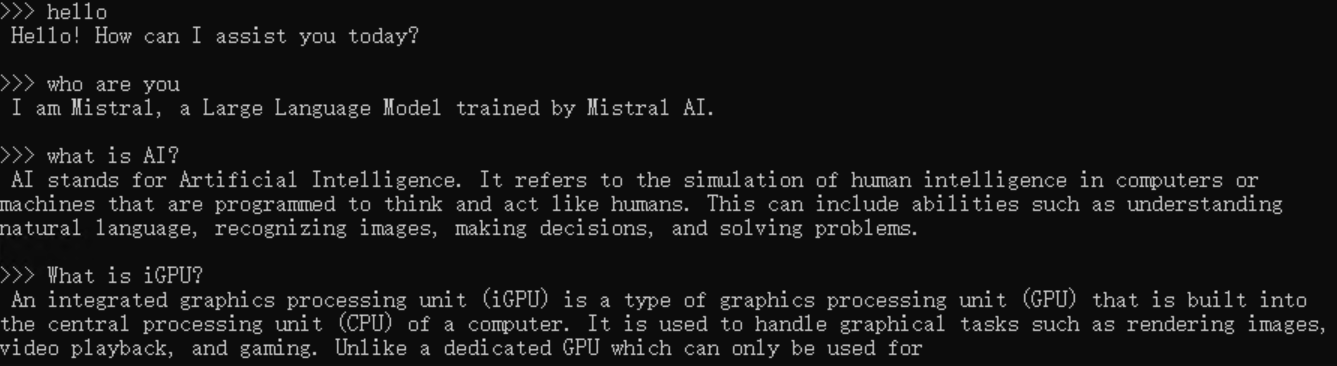
An example process of interacting with model with ollama run example looks like the following: