Run Open WebUI on Linux with Intel GPU#
Open WebUI is a user friendly GUI for running LLM locally; by porting it to ipex-llm, users can now easily run LLM in Open WebUI on Intel GPU (e.g., local PC with iGPU, discrete GPU such as Arc, Flex and Max).
See the demo of running Mistral:7B on Intel Arc A770 below.
Quickstart#
This quickstart guide walks you through setting up and using Open WebUI with Ollama (using the C++ interface of ipex-llm as an accelerated backend).
1 Run Ollama on Linux with Intel GPU#
Follow the instructions on the Run Ollama on Linux with Intel GPU to install and run “Ollam Serve”. Please ensure that the Ollama server continues to run while you’re using the Open WebUI.
2 Install and Run Open-Webui#
Installation#
Note
Package version requirements for running Open WebUI: Node.js (>= 20.10) or Bun (>= 1.0.21), Python (>= 3.11)
Run below commands to install Node.js & npm. Once the installation is complete, verify the installation by running
node -vandnpm -vto check the versions of Node.js and npm, respectively.sudo apt update sudo apt install nodejs sudo apt install npm
Use
gitto clone the open-webui repo, or download the open-webui source code zip from this link and unzip it to a directory, e.g.~/open-webui.Run below commands to install Open WebUI.
cd ~/open-webui/
cp -RPp .env.example .env  # Copy required .env file

# Build frontend
npm i
npm run build

# Install Dependencies
cd ./backend
pip install -r requirements.txt -U
Start the service#
Run below commands to start the service:
export no_proxy=localhost,127.0.0.1
bash start.sh
Note
If you have difficulty accessing the huggingface repositories, you may use a mirror, e.g. add export HF_ENDPOINT=https://hf-mirror.com before running bash start.sh.
Access the WebUI#
Upon successful launch, URLs to access the WebUI will be displayed in the terminal. Open the provided local URL in your browser to interact with the WebUI, e.g. http://localhost:8080/.
3. Using Open-Webui#
Note
For detailed information about how to use Open WebUI, visit the README of open-webui official repository.
Log-in#
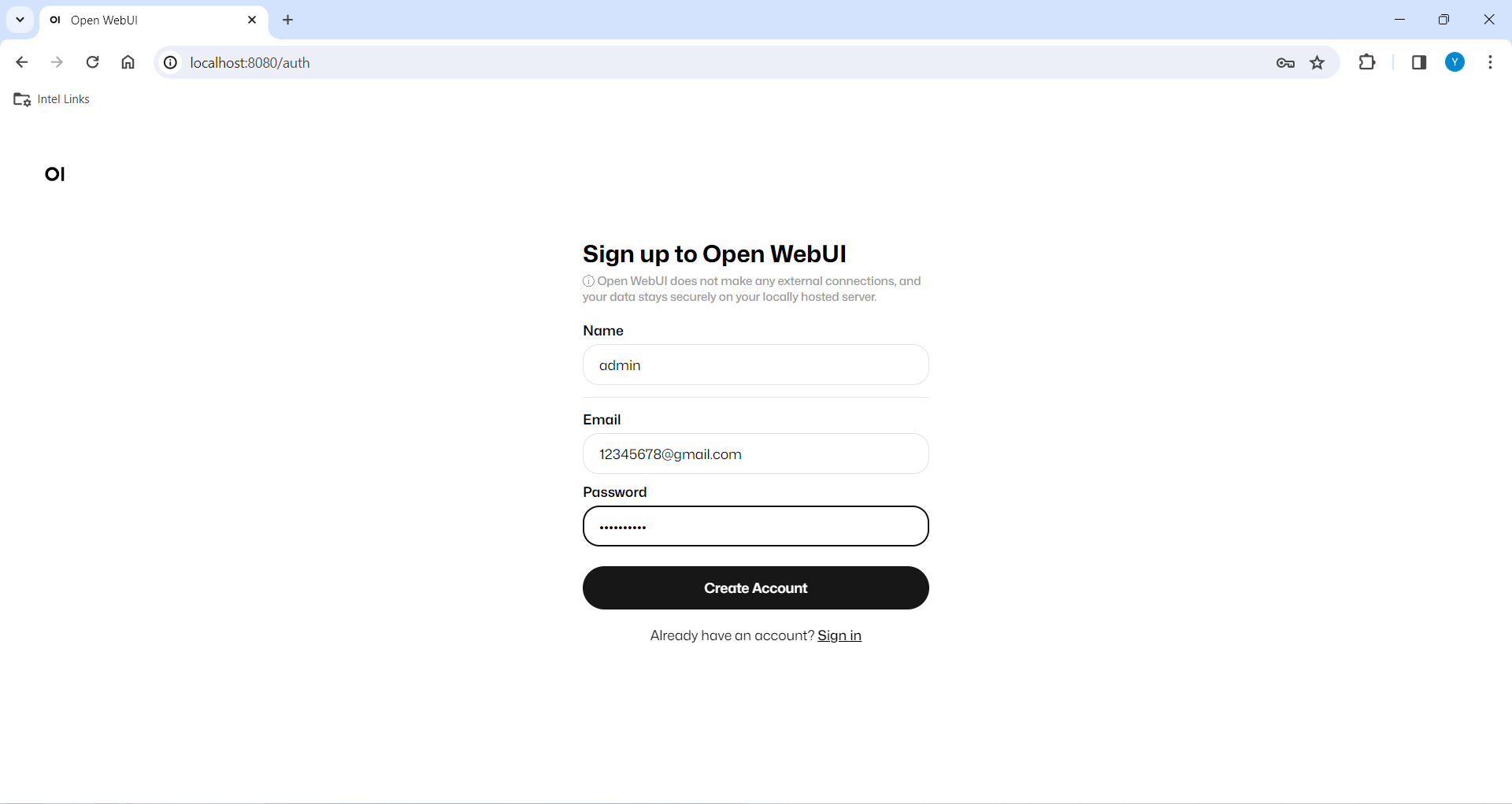
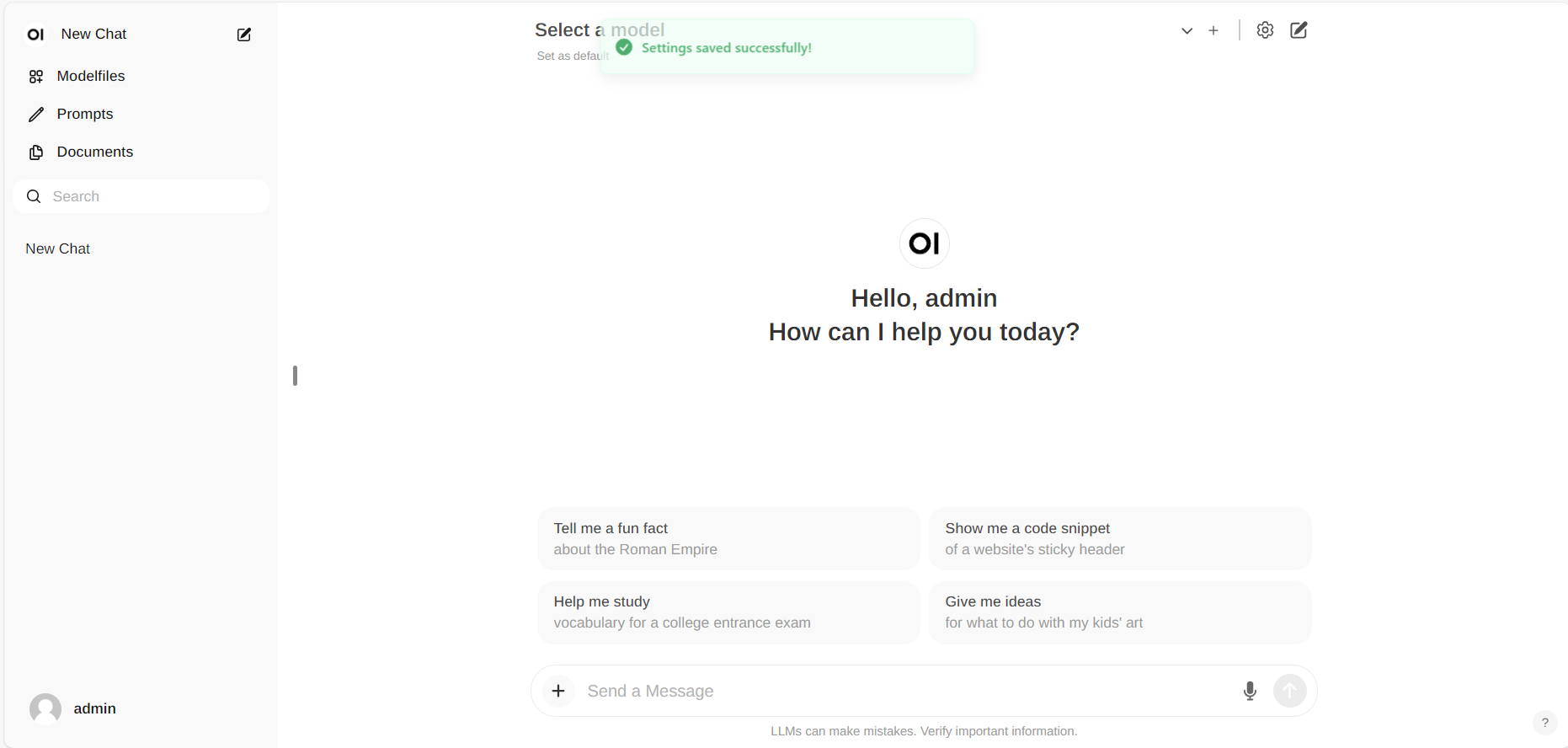
If this is your first time using it, you need to register. After registering, log in with the registered account to access the interface.
Configure Ollama service URL#
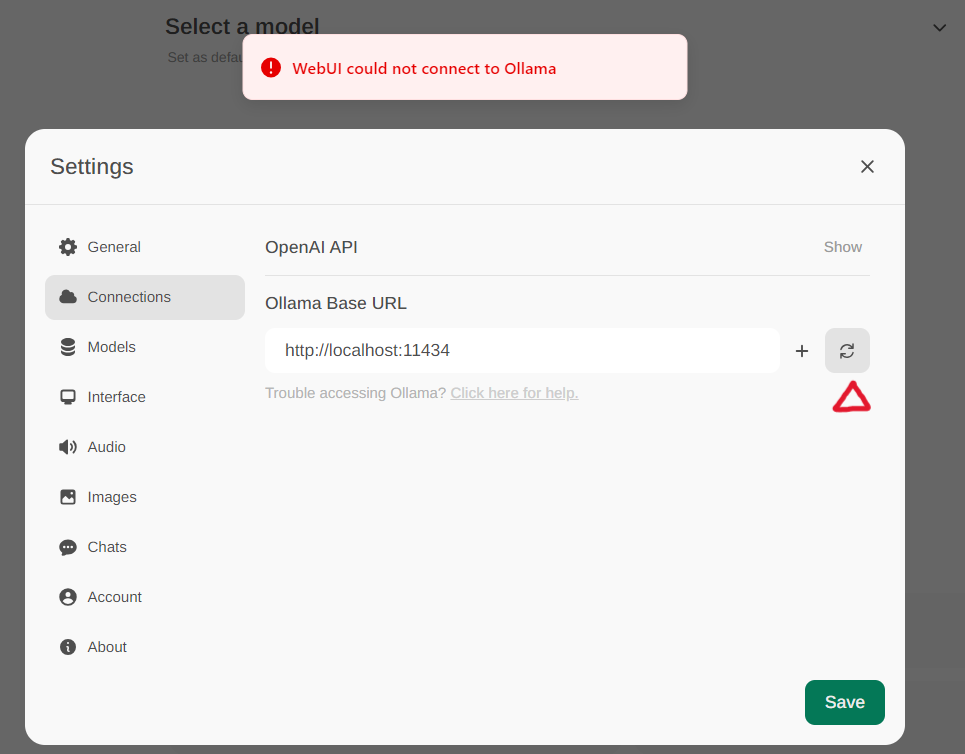
Access the Ollama settings through Settings -> Connections in the menu. By default, the Ollama Base URL is preset to https://localhost:11434, as illustrated in the snapshot below. To verify the status of the Ollama service connection, click the Refresh button located next to the textbox. If the WebUI is unable to establish a connection with the Ollama server, you will see an error message stating, WebUI could not connect to Ollama.
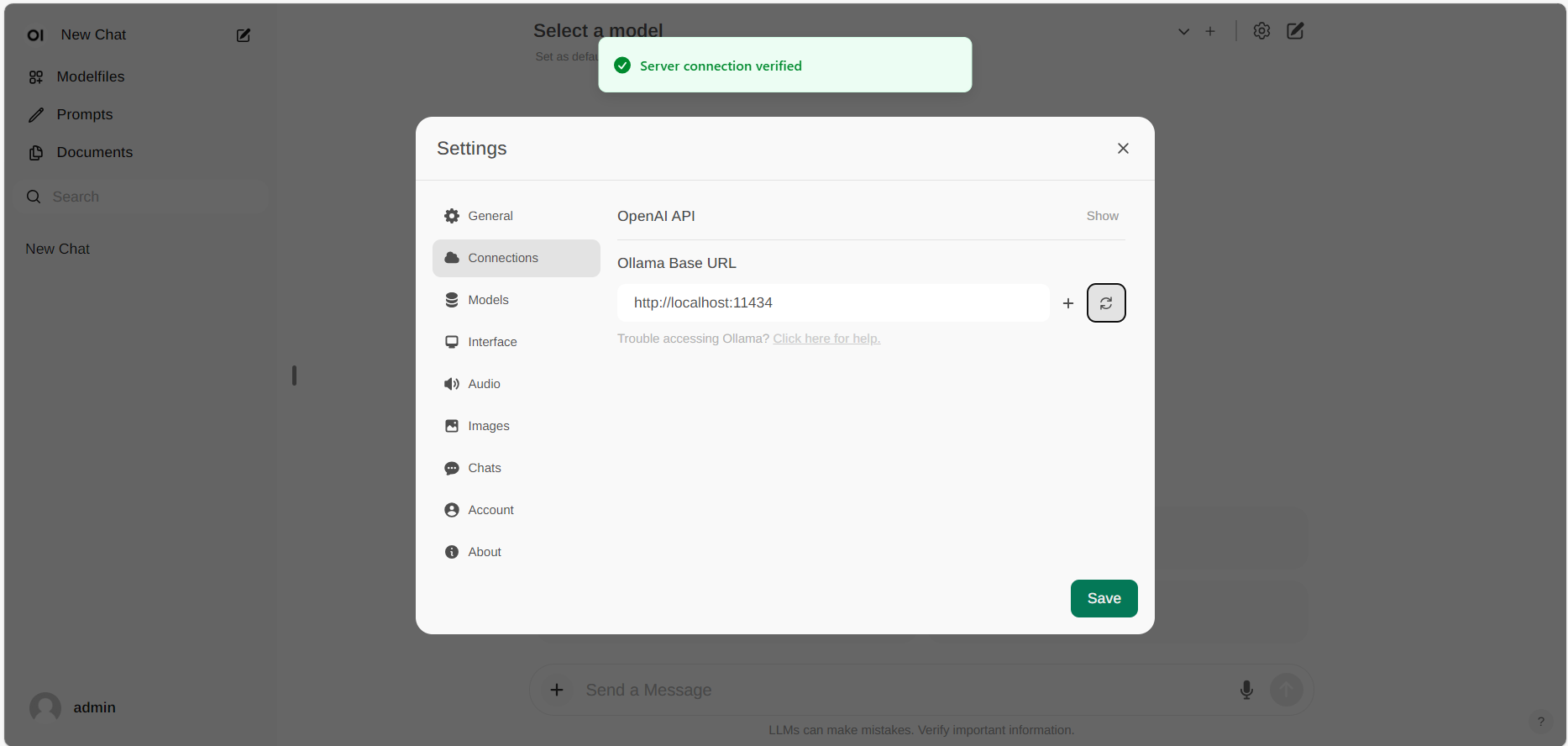
If the connection is successful, you will see a message stating Service Connection Verified, as illustrated below.
Note
If you want to use an Ollama server hosted at a different URL, simply update the Ollama Base URL to the new URL and press the Refresh button to re-confirm the connection to Ollama.
Pull Model#
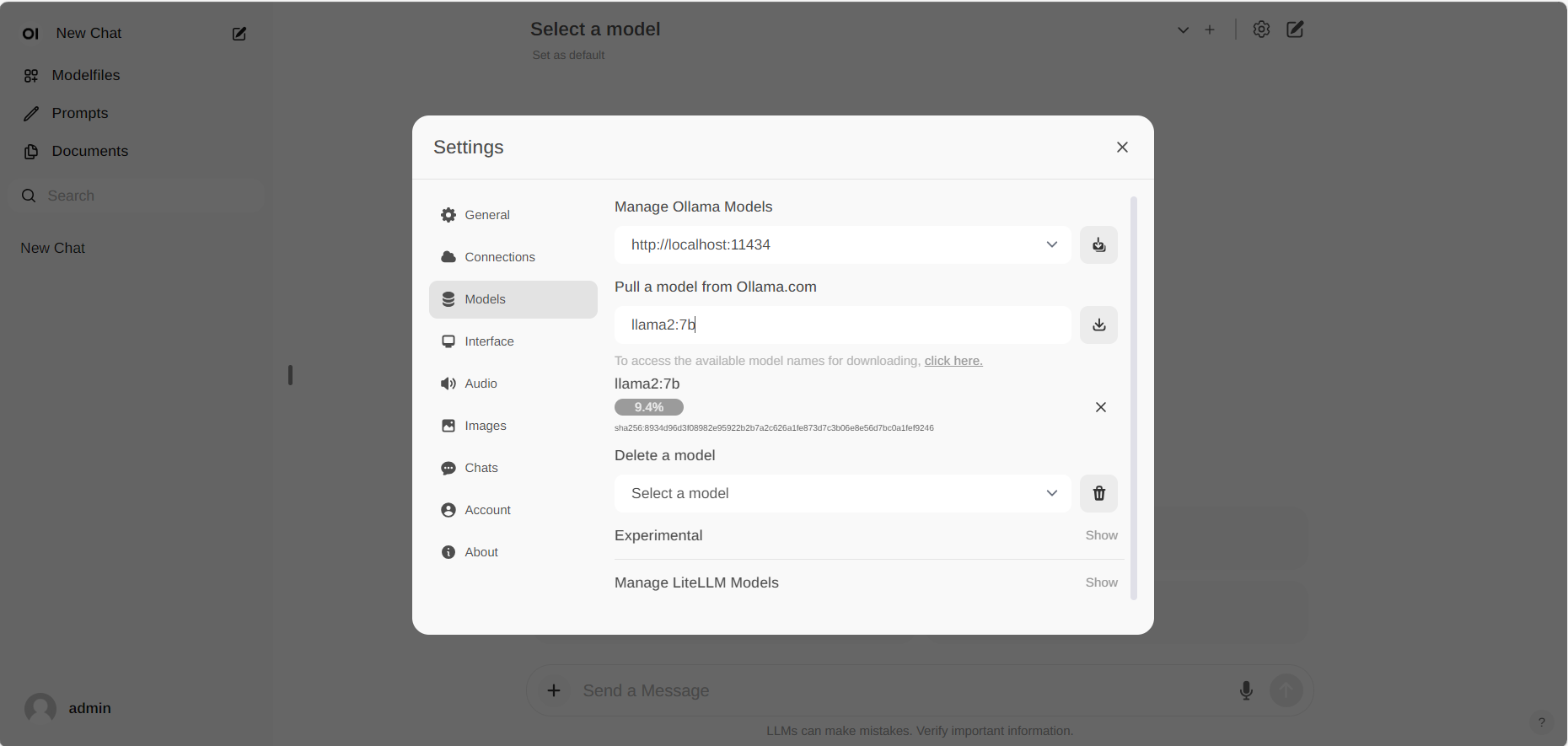
Go to Settings -> Models in the menu, choose a model under Pull a model from Ollama.com using the drop-down menu, and then hit the Download button on the right. Ollama will automatically download the selected model for you.
Chat with the Model#
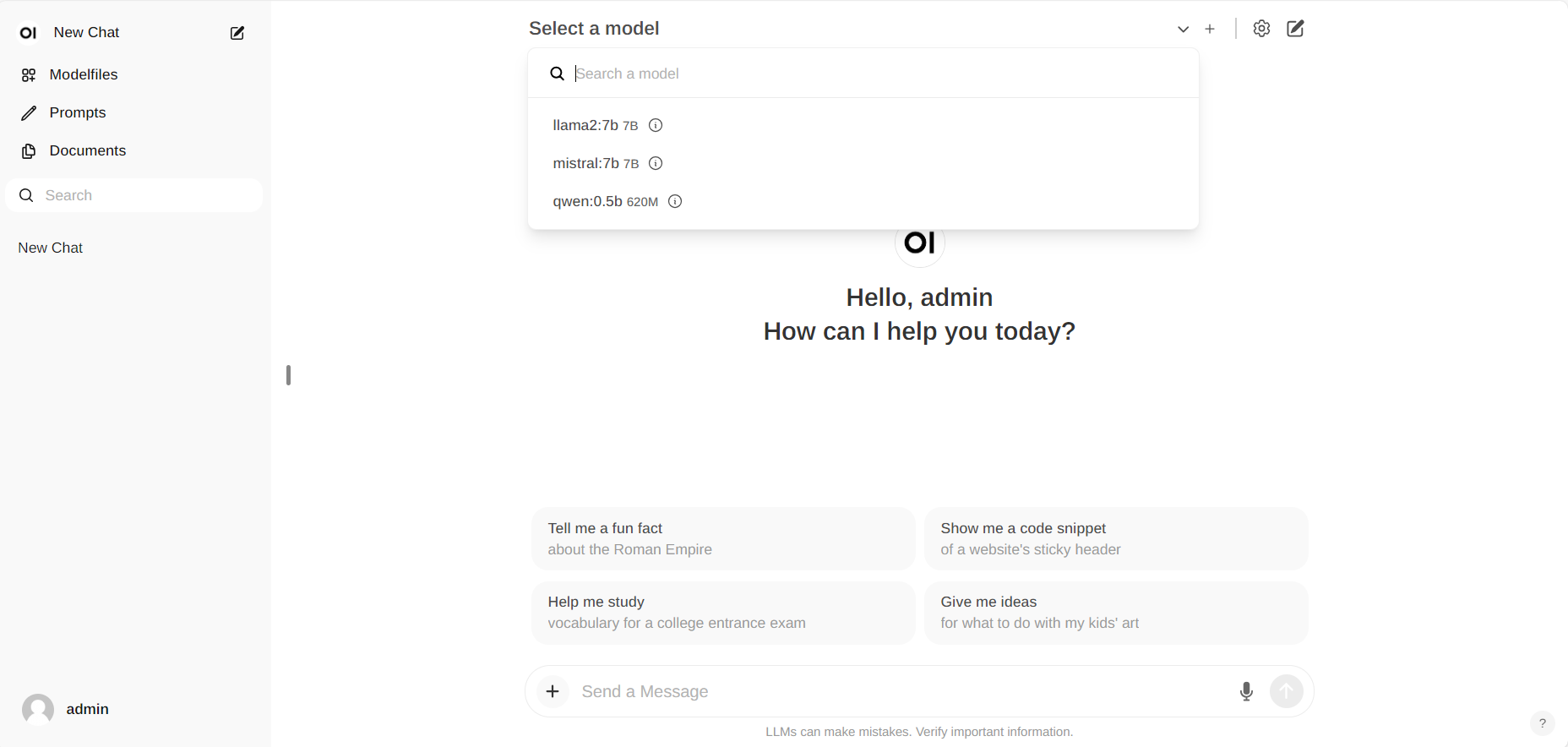
Start new conversations with New chat in the left-side menu.
On the right-side, choose a downloaded model from the Select a model drop-down menu at the top, input your questions into the Send a Message textbox at the bottom, and click the button on the right to get responses.
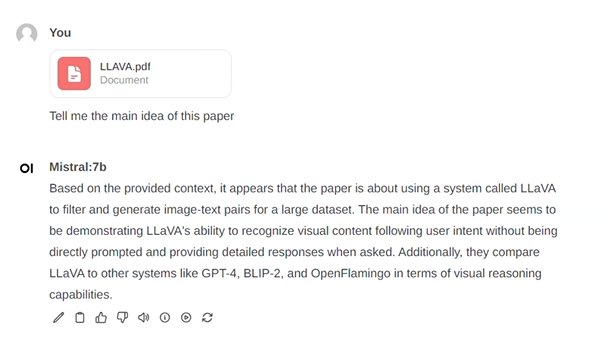
Additionally, you can drag and drop a document into the textbox, allowing the LLM to access its contents. The LLM will then generate answers based on the document provided.
Exit Open-Webui#
To shut down the open-webui server, use Ctrl+C in the terminal where the open-webui server is runing, then close your browser tab.
4. Troubleshooting#
Error No module named 'torch._C#
When you encounter the error ModuleNotFoundError: No module named 'torch._C' after executing bash start.sh, you can resolve it by reinstalling PyTorch. First, use pip uninstall torch to remove the existing PyTorch installation, and then reinstall it along with its dependencies by running pip install torch torchvision torchaudio.